The Dispatcher
How Founder OS keeps your main session fast while 92 commands run in the background.
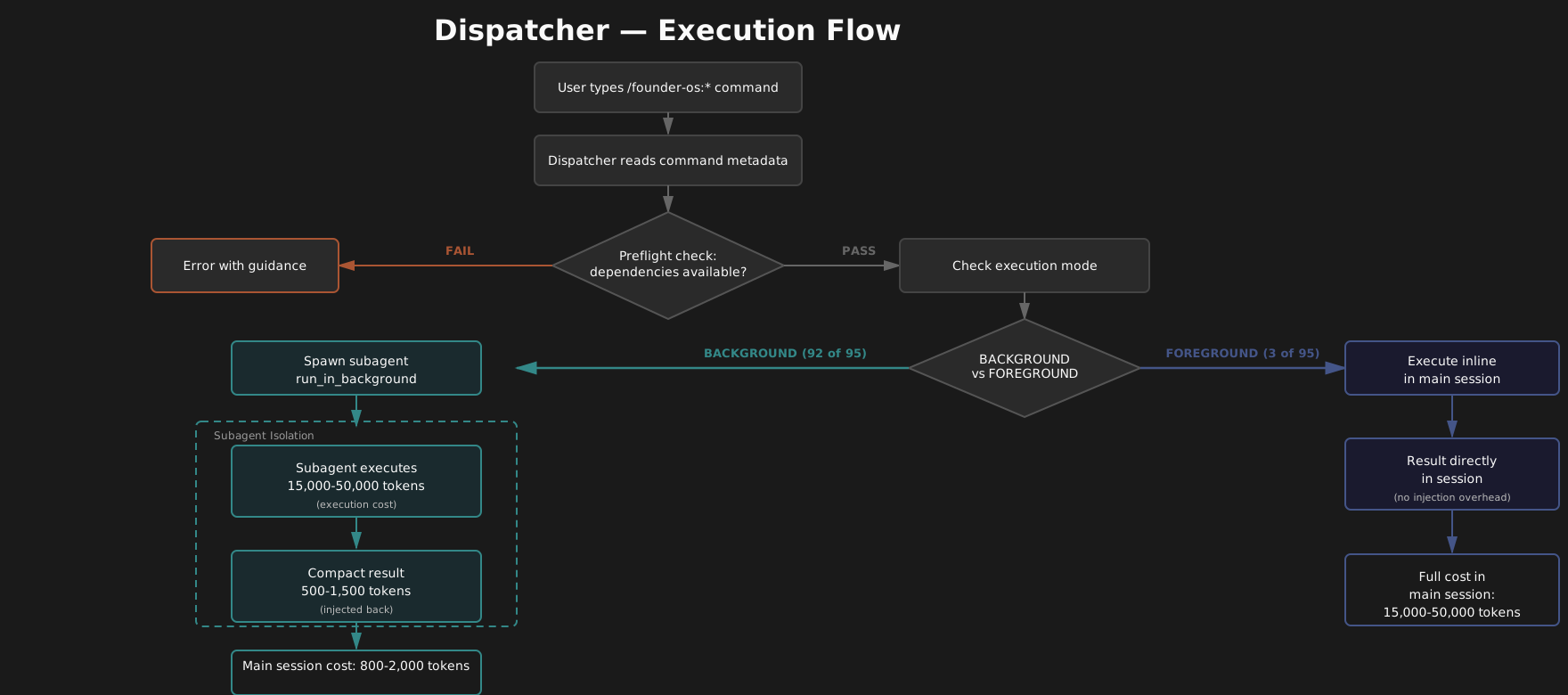
Every time you type a /founder-os:* command, the dispatcher decides how to execute it. Most commands -- 92 out of 95 -- get delegated to a background subagent that does all the heavy lifting in isolation. Your main session stays small, responsive, and ready for the next thing you need. The dispatcher is the reason you can fire off three commands in a row and keep working while they all run in parallel.
This page explains how the dispatcher works and how command frontmatter controls its behavior. It also covers preflight checks that catch missing dependencies before execution starts, and the override flags you can use when you need direct control.
Overview
Founder OS is a single plugin with 120+ slash commands spread across 32 command namespaces. Some commands are quick lookups; others pull data from Gmail, Calendar, Notion, and Drive, run multi-step analysis, and write structured results back to your databases. Without the dispatcher, every command would execute inline -- consuming tens of thousands of tokens in your main conversation and making the session progressively slower.
The dispatcher solves this by separating the conversational interface from the execution engine. When you run a command, the dispatcher reads the command's metadata, checks for any user overrides, runs a preflight dependency check, and then either executes the command inline (foreground) or spawns a background subagent to handle it. Background subagents run in complete isolation. When they finish, only a compact result summary -- typically 500 to 1,500 tokens -- gets injected back into your main session.
The result: your main session cost per background command stays between 800 and 2,000 tokens total, even when the subagent itself consumed 15,000 to 50,000 tokens doing the actual work. That execution context gets discarded after the result is delivered.
How Does Background Execution Work?
The dispatcher supports two execution modes, and every command declares which one it uses.
Background (Default)
Background execution is the default for 92 of 95 commands. When a command runs in background mode:
- The dispatcher constructs a prompt containing the command definition, user arguments, business context references, relevant memories, and intelligence patterns.
- It spawns a subagent using Claude Code's Task tool with
run_in_background: true. - Your main session immediately gets a brief confirmation -- something like "Running briefing:briefing in background..." -- and returns to idle.
- The subagent executes the full command logic in its own isolated context.
- When the subagent finishes, a structured result summary appears in your main session.
Background execution is the right choice for any command that pulls external data, runs multi-step analysis, or writes to Notion. The user does not need to watch the execution happen -- they need the result.
Foreground
Three commands run in foreground mode: the setup verification wizard (/founder-os:setup:verify), the Notion CLI setup (/founder-os:setup:notion-cli), and the time savings configuration (/founder-os:savings:configure). These are interactive commands that require back-and-forth conversation with the user -- asking questions, waiting for input, guiding through multi-step processes. Background execution would not work because the subagent cannot interact with you mid-execution.
In foreground mode, the dispatcher steps aside entirely. The command executes inline in your main session, just like a normal Claude Code conversation. No subagent is spawned, no result template is used.
SessionStart Hook
The dispatcher's rules are loaded into every Claude Code session automatically via the SessionStart hook. When you open Claude Code in a project with Founder OS installed, the hook injects the dispatcher skill definition so that Claude knows how to route commands before you ever type one.
This means there is no setup step for the dispatcher. It is always active, always reading frontmatter, always making the right routing decision. You interact with it by running commands -- the dispatcher is invisible infrastructure.
Command Frontmatter
Every command markdown file in Founder OS includes YAML frontmatter with two fields that control how the dispatcher handles it:
---
execution-mode: background
result-format: summary
---
execution-mode
| Value | Behavior | Usage |
|---|---|---|
background |
Spawn a background subagent via Task tool | 92 commands (default) |
foreground |
Execute inline in the main session | 3 commands (interactive wizards) |
If a command file does not include an execution-mode field, the dispatcher treats it as background.
result-format
| Value | Behavior | Usage |
|---|---|---|
summary |
Subagent returns a structured summary of 500-1,500 tokens | Most commands |
full |
Subagent returns complete, unabridged output | Commands where full output IS the value |
The summary format keeps your main session lean. It captures the status, a 2-5 sentence summary of what happened, the key data points, any actions taken (with Notion page IDs or file paths), warnings about degraded dependencies, and suggested follow-up commands. If you need more detail after reading a summary, you can ask follow-up questions or re-run the command with --foreground.
The full format is for commands where truncating the output would defeat the purpose -- for example, a command that generates a complete document or a detailed analysis table.
What Are Preflight Dependency Checks?
Before the dispatcher routes a command, the UserPromptSubmit hook runs a preflight dependency check. This happens in the main session, not in the subagent -- so if a required tool is missing, you find out immediately instead of waiting 30 seconds for a subagent to fail.
How Preflight Works
When you invoke any /founder-os:* command, the preflight system:
- Reads the dependency registry at
_infrastructure/preflight/dependency-registry.json. - Looks up the current command's namespace (for example,
inboxfrom/founder-os:inbox:triage). - Checks each declared dependency -- both required and optional -- against your current environment.
The checks are practical and fast. For Notion, it verifies that $NOTION_API_KEY is set and that the CLI responds. For Google Workspace tools (gws:gmail, gws:calendar, gws:drive), it runs which gws and gws auth status once, even if multiple gws dependencies are listed. For MCP servers like Filesystem and Slack, it checks whether the corresponding tools are available in the current session.
Three Outcomes
| Status | Condition | What happens |
|---|---|---|
| Ready | All required and optional dependencies pass | Silent. No output. Command proceeds. |
| Degraded | All required pass, but one or more optional fail | Warning displayed, then command proceeds with reduced functionality. |
| Blocked | One or more required dependencies fail | Error displayed with fix instructions. Command does not run. |
The key design choice: ready is silent. When everything is working, you see nothing from preflight -- it does not slow you down or clutter your output. You only hear from it when something needs your attention.
Blocked Example
If you run /founder-os:inbox:triage without the gws CLI installed, you will see:
## Preflight: Blocked

This command cannot run because required dependencies are missing:

  Required: gws CLI not found (or not authenticated).
  This command accesses your Gmail data.
  To fix:
    1. Install gws: See gws documentation for installation
    2. Authenticate: gws auth login
    3. Verify: gws gmail +triage --max 1 --format json
Fix the issue, then run the command again. Preflight caches successful checks within a session, so once gws is verified, subsequent commands that need it will not re-check.
Degraded Example
If you run /founder-os:briefing:briefing with Notion configured but without the Slack MCP server, you will see:
## Preflight: Degraded

Some optional features are unavailable:

  Optional: Slack not available -- skipping team activity highlights.

Proceeding with reduced functionality.
The briefing runs and pulls from Calendar, Gmail, and Notion, but the Slack activity section is skipped. The result summary will include a warning noting what was omitted.
Graceful Defaults
The preflight system is designed to never crash. If the registry file is missing or malformed, it returns ready and lets the command proceed. If a check command itself errors out, that dependency is marked as failed. Preflight always resolves to one of the three states.
How Does the Dispatcher Route Commands?
Here is the complete path a command takes from the moment you press Enter to the moment you see a result. We will use /founder-os:inbox:triage as a running example.
Step 1: Parse the Command
The dispatcher reads the command markdown file for inbox/triage.md and extracts the YAML frontmatter. For inbox triage, this yields:
execution-mode: background
result-format: summary
It also extracts the user's arguments and flags -- for example, --hours=12 or --team.
Step 2: Check for Flag Overrides
The dispatcher scans the user's input for --foreground or --background flags. These override whatever the frontmatter says. If neither flag is present, the frontmatter value is used.
Step 3: Preflight Dependency Check
The UserPromptSubmit hook runs the preflight check (described in the previous section). For inbox triage, it verifies that gws:gmail (required) is available. If Notion (optional) is missing, it warns and continues. If gws is missing, it blocks with fix instructions and the command stops here.
Step 4: Branch on Execution Mode
If the resolved mode is foreground, the command executes inline in your main session. The dispatcher is done -- no subagent, no result template, no further involvement.
If the resolved mode is background, the dispatcher continues to step 5.
Step 5: Pre-fetch Context
Before spawning the subagent, the dispatcher gathers lightweight context:
- Business context paths -- Lists files in
_infrastructure/context/active/and passes the file paths (not contents) to the subagent. The subagent reads them itself. - Memory context -- Queries the memory engine for the top 5 relevant memories for the
inboxnamespace. This is the one read the dispatcher does -- it is small (200-400 tokens) and saves the subagent from initializing its own memory search. - Intelligence patterns -- If the Intelligence Engine is active, fetches learned patterns for the namespace (for example, "always archive newsletters from marketing-digest@industry.com").
- Skill file paths -- Lists skill files referenced in the command markdown and passes paths to the subagent.
This pre-fetching step is intentionally lightweight. The dispatcher passes references, not contents. The subagent handles the actual file reads within its own context, keeping the main session clean.
Step 6: Spawn Background Subagent
The dispatcher uses the Task tool with run_in_background: true to spawn the subagent. The subagent prompt includes:
- The full contents of the command markdown file
- The user's arguments and flags
- Paths to business context files
- Pre-fetched memories and intelligence patterns
- Output format requirements
The subagent is instructed to return a structured result with status, summary, key data, actions taken, warnings, and suggested follow-up commands. It is explicitly told not to include raw API responses, intermediate reasoning, or full file contents.
Step 7: Confirm to User
The main session displays a brief confirmation:
Running inbox:triage in background...
Your session is now free. You can ask questions, run other commands, or just wait.
Step 8: Receive and Display Result
When the subagent finishes, the Task tool delivers the result to the main session. The dispatcher formats it using the result template:
--- Founder OS: inbox:triage (completed in 32s) ---
Status: success
Summary: Triaged 47 emails from the last 12 hours. Categorized 42 emails,
         drafted 5 responses.
Key Data:
  - Urgent (3): AWS billing alert, client escalation, contract deadline
  - Needs reply (5): drafts created and saved to [FOS] Content
  - FYI (18): newsletter subscriptions, team updates
  - Archive (21): notifications, automated alerts
Actions: Created 5 draft entries in [FOS] Content (Type: Email Draft)
         Created 3 follow-up tasks in [FOS] Tasks (Type: Email Task)
Follow-up: /founder-os:inbox:drafts-approved, /founder-os:followup:check
---
This summary is what lives in your main session context going forward. The subagent's full execution trace -- all 30,000+ tokens of it -- is discarded. If you need more detail, you can ask follow-up questions based on the summary, or re-run with --foreground for full inline execution.
Parallel Dispatch
When you request multiple commands at once -- for example, "run my briefing, triage my inbox, and prep for my 2pm meeting" -- the dispatcher spawns all subagents in a single message for parallel execution. Each result appears in your main session as it completes. There is no sequential bottleneck.
User Override Flags
Two flags let you override the execution mode declared in a command's frontmatter.
--foreground
Forces any command to execute inline in your main session, regardless of its execution-mode frontmatter.
/founder-os:report:generate --foreground
Use this when you want to watch execution happen step by step, debug an issue, or interact with the command mid-execution. The trade-off is that the full execution consumes tokens in your main session, which makes the session larger and potentially slower for subsequent interactions.
--background
Forces any command to run as a background subagent, even if its frontmatter says foreground.
/founder-os:savings:configure --background
This is rarely useful in practice, because the three foreground commands are interactive wizards that need user input. Running them in the background means they cannot ask you questions. But the flag exists for completeness and for edge cases where you want to test a command's non-interactive path.
Flag Precedence
The precedence order is straightforward:
- User flag (
--foregroundor--background) -- highest priority - Command frontmatter (
execution-mode: backgroundorforeground) -- default - System default --
backgroundif frontmatter is missing
Tips and Patterns
Running Your Morning Stack in Parallel
The most common dispatch pattern is firing off multiple commands at once:
Run my daily briefing, triage my inbox, and prep for today's meetings.
The dispatcher spawns three background subagents simultaneously. Each pulls from different data sources (Calendar, Gmail, Notion) and returns results independently. You will see three result summaries appear as each one finishes -- typically within 20-40 seconds total, not sequentially.
When to Use --foreground
Reach for --foreground in three situations:
- Debugging -- A command returned an unexpected result and you want to see exactly what it did step by step.
- First-time exploration -- You are running a command for the first time and want to understand its full behavior before relying on summaries.
- Complex follow-up -- You want to ask the command questions mid-execution or steer its behavior based on intermediate output.
For day-to-day use, background execution with summaries is almost always what you want.
Understanding Partial Results
A result with Status: partial means the command completed but could not access all data sources. This usually happens when an optional dependency is unavailable -- for example, Slack is not configured, so a briefing skipped the team activity section. The Warnings field in the result tells you exactly what was omitted:
Warnings: Slack MCP unavailable -- Slack mentions not included in triage
Partial results are still useful. They contain everything the command could access. Fix the missing dependency when convenient and run again for full coverage.
Understanding Error Results
A result with Status: error means the command could not complete its primary task. This is different from preflight blocking -- preflight catches missing dependencies before the subagent starts. Errors happen when something fails during execution, like a Notion API timeout or malformed input data.
--- Founder OS: health:scan (completed in 4s) ---
Status: error
Summary: Client health scan failed -- Notion CLI is not configured.
Follow-up: /founder-os:setup:notion-cli
---
The follow-up field usually points you to the right fix.
Token Budget Awareness
One of the dispatcher's primary goals is protecting your main session's token budget. Here is how the costs break down:
| Component | Typical tokens |
|---|---|
| Dispatch overhead (prompt construction) | 300-500 |
| Result summary (injected into main session) | 500-1,500 |
| Total main session cost per command | 800-2,000 |
| Subagent execution (isolated, discarded) | 15,000-50,000 |
Without the dispatcher, that 15,000-50,000 token execution would live in your main session, compounding with every command you run. With the dispatcher, you pay only the summary cost. After ten commands, the difference is roughly 8,000-20,000 tokens (with dispatcher) vs 150,000-500,000 tokens (without) in your main session context.
Agent Teams and the Dispatcher
Some commands support a --team flag that activates a multi-agent pipeline -- for example, /founder-os:inbox:triage --team spawns a four-agent team for deeper analysis. The dispatcher's role does not change. It still spawns a single background subagent. That subagent then becomes the coordinator that spawns the agent pipeline internally. The dispatcher does not need to know about agent teams or their internal orchestration.
Scheduling and the Dispatcher
Nine namespaces support the --schedule flag for recurring execution (for example, /founder-os:briefing:briefing --schedule "weekdays 7:30am"). When scheduling is invoked, the scheduling bridge handles it before the dispatcher gets involved -- it generates a workflow YAML and exits without running the command. The dispatcher only participates when the command actually executes, whether triggered manually or by a scheduled workflow. See the workflows documentation for details on how to set up recurring commands.
Related Pages
- Command Reference -- Full list of all 32 command namespaces and 120+ commands
- Agent Teams -- How multi-agent pipelines work with the
--teamflag - Memory Engine -- How memories and intelligence patterns are injected into dispatched commands
- Getting Started -- Installation and initial setup