Intelligence Engine
Founder OS watches how you work, learns your preferences, and adapts itself -- so every command gets a little smarter over time.
The Intelligence Engine is the behavioral layer of Founder OS. It sits beneath every command you run, quietly observing outcomes, detecting patterns in your habits, and applying what it learns to make future outputs better. It also catches errors automatically and recovers from them without interrupting your work.
You do not need to configure the Intelligence Engine to start using it. It activates the moment you run your first command. Over time, it builds a profile of your preferences -- how you like your briefings structured, which clients get priority, what tone you prefer in email drafts -- and applies those preferences automatically.
Architecture
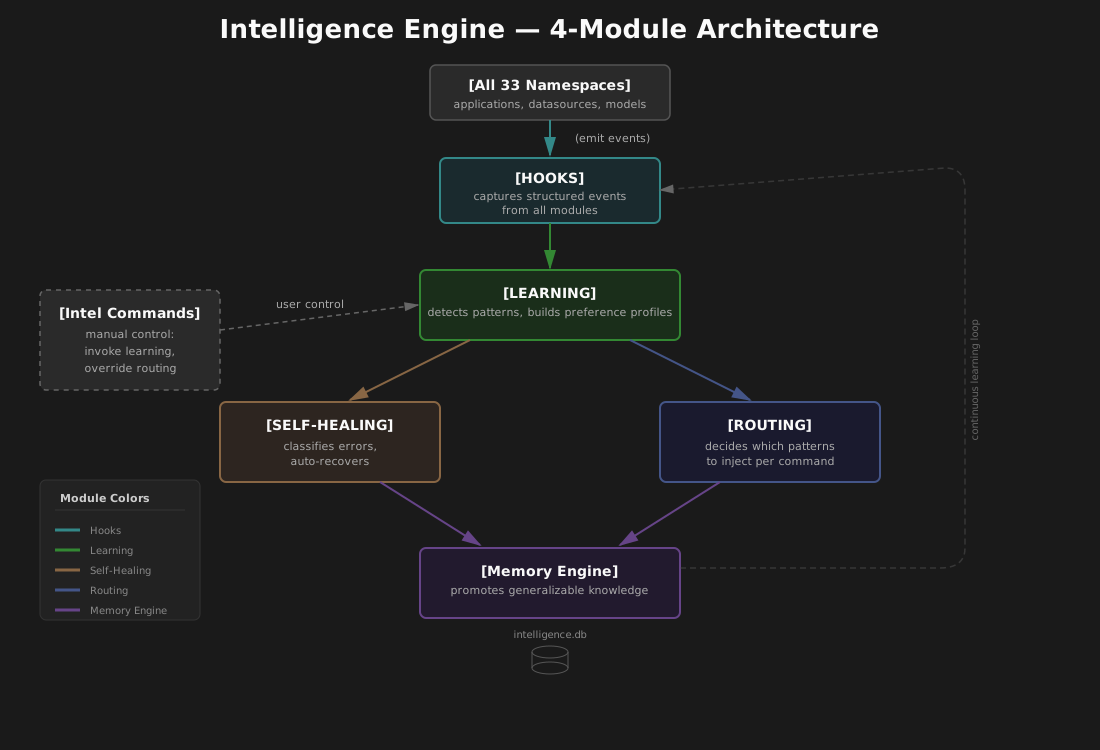
The Intelligence Engine has four modules that work together in a continuous loop:
| Module | What it does |
|---|---|
| Hooks | Captures structured events from every command execution |
| Learning | Detects patterns from your usage and builds preference profiles |
| Self-Healing | Classifies errors and applies automatic recovery strategies |
| Routing | Decides which learned patterns to inject into each command, and when to promote knowledge to the Memory Engine |
All intelligence data lives in a local SQLite database at .founderOS/infrastructure/intelligence/.data/intelligence.db. This file is created automatically on first use, never committed to version control, and stays entirely on your machine. No behavioral data leaves your workspace.
The Intelligence Engine is separate from the Memory Engine, which handles cross-command shared memory (client facts, business context, explicit preferences). The two systems communicate: when the Intelligence Engine learns something generalizable -- like a preference tied to a specific client -- it promotes that knowledge to the Memory Engine so all commands can benefit from it.
Memory Engine (storage) <-- Intelligence Engine (behavior) <-- Intel commands (user control)
                                      ^
                                All 32 command namespaces (emit events)
How Does the Intelligence Engine Learn Patterns?
Pattern detection is the heart of the Intelligence Engine. It works through a six-stage cycle that runs continuously in the background:
Observe -- Every command logs structured events: what ran, what inputs it received, what it produced, and how long it took.
Retrieve -- Before each new command runs, the engine pulls relevant patterns from past observations.
Judge -- After a command finishes, the engine compares the outcome to existing patterns. Did the user accept the output? Edit it? Re-run with different parameters?
Distill -- When the same type of correction shows up three or more times, the engine extracts a generalizable insight. For example, if you shorten your daily briefings four out of five times, the engine distills: "Keep briefings under 500 words."
Consolidate -- The insight gets stored as a pattern with a confidence score, observation count, and an instruction that can be injected into future commands.
Apply -- The next time a matching command runs, the pattern's instruction is injected into the command context. You see a notification like: [Intel] Applying learned preference: "concise email drafts under 150 words".
Three Tiers of Learning
The learning system operates across three tiers, each addressing a different kind of pattern:
Tier 1: Taste Learning detects your output preferences. It watches for repeated corrections -- shortening text, changing tone, reordering sections, adding or removing content -- and converts those corrections into instructions that shape future outputs.
| What it detects | Example pattern |
|---|---|
| Output length corrections | "Keep briefings under 500 words" |
| Tone adjustments | "Use formal business tone in email drafts" |
| Prioritization overrides | "Prioritize revenue-related items first" |
| Formatting preferences | "Use bullet-point format for task summaries" |
| Content inclusion/exclusion | "Exclude calendar items from daily briefing" |
Tier 2: Workflow Optimization detects when you repeatedly run the same sequence of commands. If you consistently run /founder-os:crm:sync-email and then /founder-os:health:scan, the engine notices and eventually suggests -- or auto-runs -- the second command after the first.
Commands within five minutes of each other in the same session count as a chain. The engine needs at least three observations before it starts suggesting. Multi-step chains (up to four commands) are supported by composing pairs.
Tier 3: What Is Confidence-Gated Autonomy? tracks repeated decisions within commands -- like how you classify email priority or what tone you choose for a report -- and gradually increases the system's autonomy for those specific decisions. It starts by asking every time, then progresses to suggesting, then to acting with a notification, based on how consistently you make the same choice.
Approval Workflow
The Intelligence Engine never takes permanent action on its own. Every pattern starts as a candidate and must prove itself before it affects your commands.
Pattern Lifecycle
candidate --> active --> approved
                    \--> rejected
Candidate -- A newly detected pattern. Confidence is below 0.5. The engine is still gathering evidence. You will not see any effect on your commands yet.
Active -- Confidence has reached 0.5 or higher with three or more observations. The pattern starts being applied to matching commands, and you see a notification each time. If you accept the output, that counts as a confirmation. If you correct it or override it, that counts as a rejection.
Approved -- You have explicitly promoted the pattern using /founder-os:intel:approve. Confidence is locked at 1.0 and the pattern will not be automatically rejected by future corrections. It becomes a permanent part of your workflow unless you manually reset it.
Rejected -- The pattern's confidence has dropped below 0.3, or you have rejected it three times in a row. It stops being applied and will not be re-suggested.
Confidence Scoring
Confidence is calculated as:
confidence = confirmations / max(1, confirmations + rejections * 2)
Rejections count double. This means a pattern that gets rejected even occasionally will lose confidence quickly -- the system errs on the side of caution rather than forcing a bad preference on you.
What Confirmation and Rejection Look Like
A confirmation happens when a pattern is applied and you accept the output without changes. You do not need to click anything -- simply moving on to your next task signals acceptance.
A rejection happens when you correct the output, override the pattern's effect, re-run the command with different parameters, or explicitly tell the system to stop applying a pattern.
Auto-Adaptations
Once a pattern reaches the active threshold (confidence 0.5 or higher, three or more observations), it starts being applied automatically. Here is what that looks like in practice.
Taste Patterns
When a taste pattern is active, its instruction gets injected into the command context before execution. You see a notification:
[Intel] Applying learned preference: "concise email drafts under 150 words"
The command then uses that instruction to shape its output. If you like the result, the pattern gets stronger. If you edit or override it, the pattern gets weaker.
Workflow Patterns
Workflow patterns have two thresholds. At the suggest threshold (default 0.5), you see:
[Intel] You typically run /founder-os:health:scan after this. Run it now?
At the trigger threshold (default 0.8), or if you have approved the pattern, the next command runs automatically:
[Intel] Auto-running /founder-os:health:scan (learned workflow)
You can cancel an auto-triggered command at any time. Cancelling counts as a rejection. Three consecutive rejections retire the pattern.
Autonomy Patterns
Autonomy patterns control individual decisions within commands. They progress through four levels:
| Level | What happens | Example |
|---|---|---|
| Ask (default) | The system presents the decision and waits | "Should I classify this as urgent?" |
| Suggest | The system pre-fills the choice; you confirm | "Classifying as urgent (VIP sender). Confirm?" |
| Act + Notify | The system decides and tells you | "[Intel] Classified as urgent (learned: VIP senders)" |
| Silent | The system decides without notification | (Only enabled via explicit approval) |
Promotion through the ladder requires increasing confidence and observation counts. Any single rejection at any level drops the pattern back to Ask. The Silent level is never reached automatically -- it requires you to explicitly approve the pattern.
A global cap (learning.autonomy.max_level, default: "notify") sets the highest level any pattern can reach, regardless of its confidence. This gives you a hard guardrail over how much autonomous behavior you are comfortable with.
The Intelligence Database
All intelligence data lives in a single SQLite database. Here are the core tables:
events
The raw event log. Every command execution produces at least two events (start and end). Events are retained for 30 days by default, then automatically purged.
| Column | Purpose |
|---|---|
session_id |
Links events within one command execution |
plugin |
Which namespace ran (e.g., "inbox") |
command |
Which action ran (e.g., "triage") |
event_type |
One of: pre_command, post_command, mcp_call, decision_point, error |
payload |
JSON with event-specific details |
outcome |
success, failure, or degraded (post-command events only) |
duration_ms |
Wall-clock time for the execution |
patterns
Distilled preferences and behavioral patterns. These persist indefinitely (they are not affected by the event retention window).
| Column | Purpose |
|---|---|
pattern_type |
taste, workflow, or autonomy |
plugin / command |
What the pattern applies to (null means cross-plugin or all commands) |
description |
Human-readable summary |
instruction |
The text injected into command context when the pattern is applied |
confidence |
0.0 to 1.0 score |
observations / confirmations / rejections |
Usage counters |
status |
candidate, active, approved, or rejected |
healing_patterns
Error recovery knowledge. Tracks which fixes work for which types of errors.
| Column | Purpose |
|---|---|
error_signature |
Normalized error key (e.g., "notion_api:429:rate_limit") |
category |
transient, recoverable, degradable, or fatal |
fix_action |
What to do when this error occurs |
success_count / failure_count |
How well the fix works over time |
config
Key-value configuration. Controls thresholds, feature flags, and retention periods. You manage these through the /founder-os:intel:config command.
The PostToolUse Hook
The Intelligence Engine integrates with every Founder OS command through a lightweight hook system. You do not need to set up anything -- every command file includes observation blocks that fire automatically.
How Observations Work
When you run any command (say, /founder-os:inbox:triage), the following happens behind the scenes:
-
Pre-command -- The hook records which command is starting, what arguments were passed, which business context files were loaded, and which memories were injected. A session ID is generated to link all events from this execution together.
-
During execution -- If the command makes significant external calls (Notion queries, Gmail searches, Drive lookups), those are optionally logged as MCP call events with latency and status data. Key decision points -- like classifying an email as urgent vs. normal -- are also logged.
-
Post-command -- The hook records the outcome (success, failure, or degraded), a summary of what was produced, and how long the execution took. If any errors occurred, they are recorded separately with details about what recovery was attempted.
All of this happens transparently. The hooks add no perceptible latency to your commands -- the database writes are fast local SQLite operations.
What Gets Captured
| Event type | When it fires | What it records |
|---|---|---|
pre_command |
Before a command starts | Input parameters, context loaded, memories injected |
post_command |
After a command completes | Outcome summary, items processed, outputs created |
mcp_call |
After a significant external call | Tool name, latency, response status, data size |
decision_point |
At a key branching choice | Decision description, options considered, choice made, reasoning |
error |
When something goes wrong | Error type, message, context, recovery attempted |
Retention
Raw events are kept for 30 days by default (configurable via /founder-os:intel:config hooks.retention_days <value>). Distilled patterns persist indefinitely. Old events are cleaned up automatically when you run /founder-os:intel:status or at the start of a new session.
How Does Self-Healing Work?
The Intelligence Engine classifies every error it encounters and applies an appropriate recovery strategy. Most of the time, you never see the error at all -- the system handles it and moves on.
Error Categories
| Category | Examples | What happens |
|---|---|---|
| Transient | Rate limits (HTTP 429), timeouts, network errors | Retry with increasing wait times (2s, 5s, 15s) |
| Recoverable | Expired authentication, database not found | Apply a known fix (re-auth prompt, database discovery), then retry once |
| Degradable | Slack unavailable, Drive search fails | Continue with available data, note what was skipped |
| Fatal | Invalid input, missing required resource | Stop and tell you what to do |
Every self-healing action produces a visible notification so you always know what happened:
[Heal] Notion rate limited -- retrying in 5s (attempt 2/3)
[Heal] Calendar unavailable -- continuing without calendar data
[Heal] Recovered: Notion DB found via fallback search, resuming command
[Heal] FAILED: Gmail unreachable -- check your internet connection
Learning From Failures
The self-healing system gets smarter over time. It tracks which fixes actually work:
- If a "transient" error persists across three or more sessions without resolution, it gets reclassified as "recoverable" or "fatal."
- If a "fatal" error gets manually resolved by you, the system learns the recovery path for next time.
- Fix strategies that succeed more often than they fail get promoted. Strategies with low success rates get demoted.
Fallback Registry
For degradable errors, the engine uses a fallback registry that maps known failure modes to graceful alternatives. For example, if Gmail is unavailable during a daily briefing, the briefing continues with Calendar and Notion data only, and clearly notes that email data is missing.
Every Founder OS namespace has registered fallback paths. The engine extends this registry over time based on which fallbacks you accept versus which ones lead you to re-run the command.
User Commands
The Intelligence Engine provides seven commands for monitoring, managing, and configuring the system.
/founder-os:intel:status
The main dashboard. Shows hooks activity, learned patterns, self-healing events, and current configuration at a glance.
/founder-os:intel:status
Output includes:
- How many events have been captured in the last 30 days
- Count of patterns by status (candidate, active, approved, rejected)
- The top three highest-confidence active patterns
- Recent healing events with success rates
- Current configuration values
If the Intelligence database does not exist yet (no commands have been run), the dashboard tells you so and explains that data will appear after your first command run.
/founder-os:intel:patterns
Browse and inspect learned patterns. Filter by namespace, type, or status.
/founder-os:intel:patterns                        # Show all patterns
/founder-os:intel:patterns inbox                  # Patterns for the inbox namespace only
/founder-os:intel:patterns --type=taste           # Only taste-learning patterns
/founder-os:intel:patterns --status=active        # Only active patterns
/founder-os:intel:patterns --detail abc123        # Full history for a specific pattern
The list view shows each pattern's ID, namespace, type, confidence score, status, and description. The detail view adds the full instruction text, observation history, and related events.
/founder-os:intel:approve
Promote a pattern to permanently approved status. This locks its confidence at 1.0 and prevents automatic rejection.
/founder-os:intel:approve <pattern-id>
The command shows you the pattern's details and asks for confirmation before applying. Once approved, the pattern is permanently applied to all matching command runs unless you explicitly reset it.
For workflow patterns, approval also offers to create a reusable workflow through the Workflow Automator, so you can schedule or share the chain.
/founder-os:intel:config
View and modify Intelligence Engine settings. With no arguments, it displays all current configuration values.
/founder-os:intel:config                                    # Show all settings
/founder-os:intel:config learning.taste.threshold           # Show one setting
/founder-os:intel:config learning.taste.threshold 0.6       # Change a setting
/founder-os:intel:config --reset                            # Reset all to defaults
Key settings you might want to adjust:
| Setting | Default | What it controls |
|---|---|---|
learning.enabled |
true |
Master switch for pattern detection |
learning.taste.threshold |
0.5 |
Confidence level at which taste patterns start being applied |
learning.workflow.suggest_threshold |
0.5 |
Confidence level at which workflow chains are suggested |
learning.workflow.trigger_threshold |
0.8 |
Confidence level at which workflow chains auto-trigger |
learning.autonomy.max_level |
notify |
Highest autonomy level any pattern can reach (ask, suggest, notify, or silent) |
healing.enabled |
true |
Master switch for self-healing |
healing.max_retries |
3 |
Maximum retry attempts for transient errors |
healing.fallback.enabled |
true |
Whether to use graceful degradation when optional sources fail |
hooks.retention_days |
30 |
How long raw events are kept before cleanup |
hooks.decision_points |
true |
Whether to capture decision-point events |
Changes take effect immediately. No restart is needed.
/founder-os:intel:reset
Clear learned patterns for a specific namespace or all namespaces.
/founder-os:intel:reset inbox              # Clear patterns for the inbox namespace
/founder-os:intel:reset all                # Clear all patterns
/founder-os:intel:reset all --type=taste   # Clear only taste patterns across all namespaces
The command tells you how many patterns will be removed and asks for confirmation before proceeding. Raw events are not deleted -- only the distilled patterns. The engine will re-learn from future observations.
/founder-os:intel:healing
View the self-healing event log, error frequency analysis, and fix effectiveness rates.
/founder-os:intel:healing                    # Full healing report
/founder-os:intel:healing --plugin=inbox     # Healing events for inbox only
The report includes:
- Recent healing events from the last seven days
- Error frequency heatmap for the last 30 days
- Fix effectiveness rates (which recovery strategies are working)
- Systemic issues -- errors recurring across three or more sessions that may need manual attention
/founder-os:intel:health
Quality dashboard showing eval scores, namespace trends, and regression alerts. This command reports on the output quality of your commands over time, using the built-in evaluation framework.
/founder-os:intel:health
The dashboard shows an overall quality score, per-namespace breakdowns, any detected regressions (namespaces where quality has dropped below the threshold), and the lowest-scoring quality dimensions across your commands.
Tips and Patterns
Start by just using Founder OS normally
The Intelligence Engine works best when it has real data to learn from. You do not need to train it or configure anything upfront. Just run your usual commands -- inbox triage, daily briefings, meeting prep, reports -- and the engine will start detecting patterns within your first week of use.
Check your patterns weekly
Run /founder-os:intel:status once a week to see what the engine has learned. Review candidate patterns that are close to becoming active. If something looks right, approve it early with /founder-os:intel:approve to lock it in.
Approve patterns you agree with
When you see [Intel] Applying learned preference: "..." in a command and the result is good, approving that pattern tells the engine to keep it permanently. Approved patterns are not subject to confidence decay and will not be rejected by occasional corrections.
Reject patterns that are wrong
If the engine applies a pattern and the result is not what you wanted, just correct the output. The engine treats your correction as a rejection and adjusts the confidence score. Three rejections in a row will retire the pattern entirely.
Use the config command to set your comfort level
If you want the engine to learn but never auto-trigger workflows, set:
/founder-os:intel:config learning.workflow.trigger_threshold 1.0
This means workflow chains will be suggested but never auto-executed (since confidence never reaches 1.0 organically).
If you want to disable autonomy escalation entirely:
/founder-os:intel:config learning.autonomy.max_level ask
This keeps the engine in "always ask" mode for decision points, while still learning taste preferences and workflow chains.
Reset when your business changes
If your priorities shift -- new clients, new industry focus, different communication style -- you can reset patterns for specific namespaces without losing everything:
/founder-os:intel:reset briefing --type=taste
This clears taste patterns for the briefing namespace only, letting the engine re-learn your new preferences while keeping workflow chains and autonomy patterns intact.
Monitor self-healing for systemic issues
Run /founder-os:intel:healing periodically to check for recurring errors. Systemic issues -- errors that appear across three or more sessions -- usually indicate a configuration problem (expired auth, missing database) rather than a transient network issue. The healing report highlights these so you can fix the root cause.