Memory Engine
Overview
Every time you run a Founder OS command, the system is quietly learning. The Memory Engine is the subsystem responsible for remembering your preferences, recognizing your patterns, and storing facts about your clients and workflows so that every plugin can personalize its output to the way you work.
Think of it as institutional memory for your business. When you triage your inbox for the fifth time and always flag emails from your biggest client as urgent, the Memory Engine notices. When you consistently run your daily briefing at 8 AM, it picks up on that too. Over time, Founder OS stops being a generic tool and starts behaving like a well-trained assistant who already knows how you operate.
The Memory Engine is not a separate product you install or configure. It runs automatically as part of every plugin, building knowledge in the background. You can also teach it directly, review what it has learned, correct mistakes, and sync everything with your Notion workspace for visibility.
Architecture
The Memory Engine stores everything in a local SQLite database at .memory/memory.db in your project root. SQLite was chosen for speed and simplicity: every read and write happens on your local disk with no network latency, no external service to configure, and no data leaving your machine.
Two technologies work together inside this database:
-
SQLite (WAL mode) handles structured storage: memory records, observation logs, and adaptation history. WAL (Write-Ahead Logging) mode allows multiple plugins to read the database simultaneously without blocking each other, which matters when you run several commands in quick succession.
-
HNSW vector index powers semantic search. When a memory is stored, its content is converted into a numerical representation (an "embedding") that captures its meaning. When a plugin needs to find relevant memories, it compares the meaning of the current task against all stored memories and returns the closest matches. This is why the system can surface your "Acme Corp pays net-30" memory when you are processing an Acme invoice, even though the invoice command never mentioned the word "net-30."
The database initializes automatically the first time any plugin needs it. You never need to create or manage it manually. If it gets deleted, it rebuilds from scratch and starts learning again (though you would lose accumulated memories unless you sync them back from Notion).
How Does the Memory Engine Work?
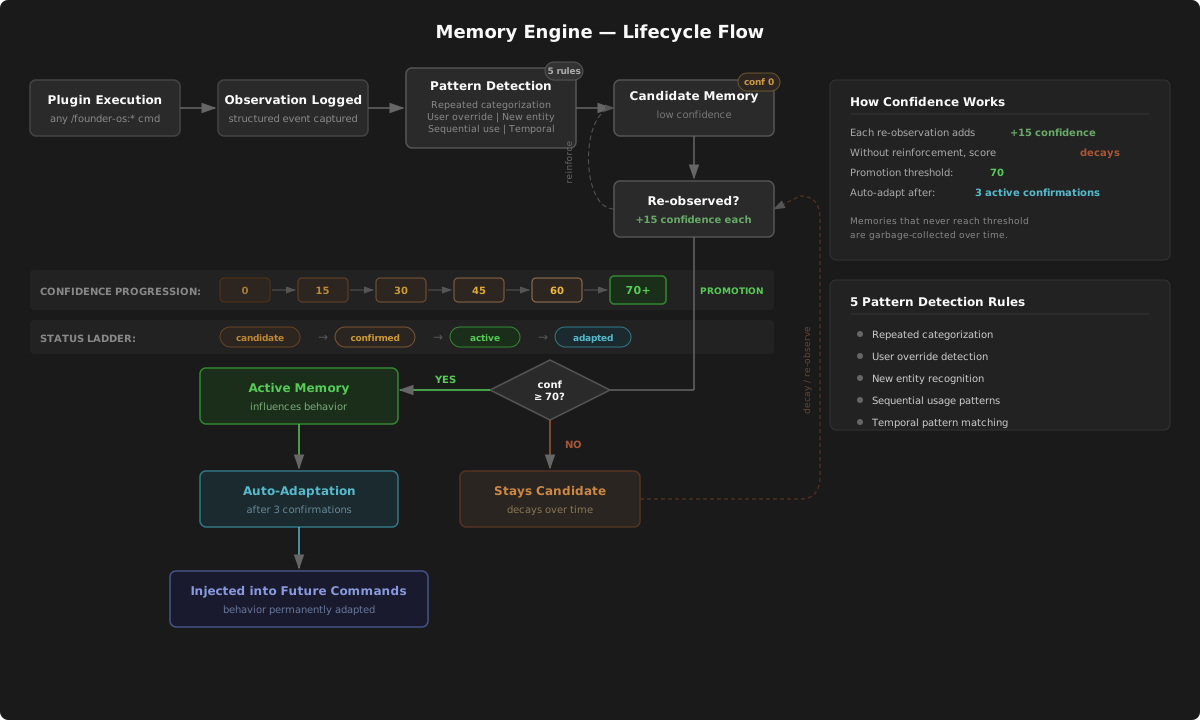
Every memory in Founder OS follows a lifecycle: it starts as an observation, may become a candidate memory, and can eventually be promoted to active status where it influences plugin behavior.
Step 1: Observation
After every plugin command finishes, the system logs a single observation record. This is raw data: which plugin ran, what action it performed, what company or contact was involved, and contextual details like the time of day or whether you edited the output.
Observations are not memories. They are the raw material that pattern detection analyzes to discover memories.
Step 2: Pattern Detection
Five detection rules run against the observation history after each plugin execution:
| Rule | What it detects | Trigger threshold |
|---|---|---|
| Repeated categorization | Same plugin categorizes the same entity the same way | 3 occurrences |
| User override | You edit the plugin's output in the same way repeatedly | 2 occurrences |
| New entity discovery | A new company, contact, or entity appears for the first time | 1 occurrence |
| Sequential plugin usage | You run the same sequence of plugins within 2 hours, across sessions | 3 sessions |
| Temporal pattern | You run a plugin at the same hour of day consistently | 5 occurrences |
When a rule triggers, it creates a candidate memory with low confidence. Candidates are not yet trusted enough to influence behavior.
Step 3: Confirmation and Promotion
Each time the system re-observes the same pattern, it reinforces the candidate memory by adding 15 confidence points. As confidence rises, the memory is promoted through a status ladder:
| Status | What it means | When it happens |
|---|---|---|
| Candidate | Newly detected, not yet trusted | Created by pattern detection (confidence 0-59) |
| Confirmed | Seen enough times to believe | Confidence reaches 60 |
| Applied | Actively shaping plugin behavior | Confidence reaches 80 and confirmed 3+ times |
| Dismissed | You explicitly rejected it | You used /founder-os:memory:forget or dismissed it in Notion |
Only confirmed and applied memories are injected into plugin context. Candidates are invisible to plugins until they earn enough confidence.
Step 4: Adaptation
When a memory reaches applied status for the first time, the system logs a behavioral adaptation and notifies you:
> Memory adapted: I'm now auto-flagging @acmecorp.com emails as
> VIP action-required based on your last 5 sessions.
> Run /founder-os:memory:show to review all active adaptations,
> or /founder-os:memory:forget "p01-acmecorp-action-required" to
> revert this one.
This notification only appears once. After that, the adaptation is silently applied on every relevant command.
Confidence Scoring and Decay
How Confidence Works
Every memory has a confidence score from 0 to 100. This score determines whether the memory is trusted enough to be used.
Gaining confidence:
- Memories you teach directly via
/founder-os:memory:teachstart at 100 (maximum confidence, immediately confirmed). - Memories detected automatically by the system start at 20-35, depending on the signal strength.
- Each time the same pattern is re-observed, the memory gains +15 confidence, capped at 100.
Confidence thresholds:
| Threshold | What happens |
|---|---|
| 60+ | Memory promoted from candidate to confirmed (now visible to plugins) |
| 80+ (and 3+ confirmations) | Memory promoted from confirmed to applied (actively shapes behavior) |
| Below 10 | Memory auto-deleted (it was never reinforced and has decayed away) |
What Happens When a Memory Decays?
Memories are not permanent. If a memory is not used for 30 days, it begins to lose confidence at a rate of 5 points per decay cycle (every 7 days). This prevents stale or outdated knowledge from lingering indefinitely.
Here is what happens over time to an unused memory starting at confidence 80:
| Days unused | Confidence | Status |
|---|---|---|
| 0-29 | 80 | Applied (no decay) |
| 30 | 75 | Applied (first decay) |
| 37 | 70 | Applied |
| 44 | 65 | Applied |
| ... | ... | ... |
| ~100+ | Below 10 | Auto-deleted |
Dismissed memories are immune to decay. When you explicitly dismiss a memory, it is frozen and preserved indefinitely for audit purposes, but never injected into plugin context.
The 30-Day Inactive Threshold
The 30-day window is deliberate. Monthly patterns (like end-of-month invoicing or quarterly reports) have time to re-confirm before decay kicks in. Daily patterns stay fresh easily. Memories you actively use are continuously refreshed and never decay.
Decay runs automatically once per day, triggered by the first plugin command you run each day.
Cross-Namespace Injection
The Memory Engine's most powerful feature is context injection: before every plugin command runs, the system automatically queries for relevant memories and injects them into the plugin's working context.
How Injection Works
When you run any command (say, /founder-os:invoice:process), the system runs three targeted queries before the main logic starts:
-
Semantic search (up to 5 results): Finds memories whose meaning is closest to the current task. If you are processing an Acme invoice, this might surface "Acme Corp pays net-30" and "Sarah at Acme is the billing contact."
-
Company-scoped search (up to 3 results): If the command involves a specific client, this pulls all confirmed memories linked to that company.
-
Plugin-specific search (up to 2 results): Finds memories that this specific plugin learned in prior runs, like "User prefers bullet-point format for reports."
Results are deduplicated, ranked by confidence, and capped at 5 total memories. These are formatted and injected as behavioral defaults:
## Relevant Memories
- [fact] Acme Corp pays invoices on net-30 terms. (confidence: 90)
- [contact] Sarah Chen at Acme is the billing decision-maker. (confidence: 85)
- [preference] Always include line-item detail on invoices. (confidence: 78)
- [pattern] Invoice processing usually happens Monday mornings. (confidence: 68)
What Plugins Do With Injected Memories
Each memory type guides plugin behavior differently:
- Preferences become behavioral defaults (e.g., use a specific format, tone, or approach).
- Facts are treated as ground truth about clients or your business.
- Contacts are used when addressing or routing to specific people.
- Patterns help the plugin anticipate your likely next steps.
- Workflows guide the sequence of operations.
Injected memories never override your explicit instructions. If you say "use net-60 terms for this invoice," that overrides the stored "net-30" memory for that specific run.
Performance
Injection adds less than 2 seconds to command startup. All queries run against the local SQLite database, so there is no network latency. If injection takes longer than 2 seconds for any reason, the system aborts and runs the plugin without memories rather than making you wait.
User Commands
You have four commands for managing the Memory Engine directly. All use the /founder-os:memory: namespace.
/founder-os:memory:teach
Explicitly teach the system something you want it to remember. Taught memories start at confidence 100 and are immediately active.
Syntax:
/founder-os:memory:teach "<statement>" [--company "Company Name"] [--category preference|fact|contact|workflow]
Examples:
/founder-os:memory:teach "Always flag emails from @bigclient.com as urgent"

/founder-os:memory:teach "Acme Corp pays invoices on net-30 terms" --company "Acme Corp"

/founder-os:memory:teach "Sarah at sarah@acme.com is the main decision-maker at Acme" --company "Acme Corp" --category contact

/founder-os:memory:teach "After the weekly review, always run the follow-up tracker" --category workflow

/founder-os:memory:teach "Never send proposals on Fridays" --category preference
What happens:
- The system auto-detects the category if you do not specify one (based on keywords like "always," "never," person names, company names, or workflow language).
- It checks for duplicate or near-duplicate memories and asks you how to handle conflicts.
- If you include
--company, it links the memory to the matching company record in your Notion CRM. - The memory is stored locally and synced to Notion.
- You get a confirmation showing the stored key, category, and sync status.
/founder-os:memory:forget
Delete a memory and revert any behavior it triggered.
Syntax:
/founder-os:memory:forget <key> [--force]
Examples:
/founder-os:memory:forget acme-vip-flag

/founder-os:memory:forget acme-vip-flag --force
What happens:
- The system looks up the memory by its key. If the exact key is not found, it suggests similar keys (fuzzy matching).
- It shows you the memory details and any active adaptations it is driving.
- You confirm the deletion (unless you pass
--force). - The memory is deleted from the local store, any active adaptations are reverted, and the Notion record is archived (not hard-deleted, so you have an audit trail).
/founder-os:memory:show
View what the system has learned: memories, patterns, and active adaptations.
Syntax:
/founder-os:memory:show [filter] [--candidates] [--adaptations]
Filters:
- No filter or
allshows all confirmed and applied memories. - A company name (e.g.,
Acme Corp) shows memories scoped to that client. - A plugin ID (e.g.,
P02) shows memories created by that plugin.
Flags:
--candidatesincludes unconfirmed candidate memories in the output.--adaptationsshows active behavioral adaptations.
Examples:
/founder-os:memory:show

/founder-os:memory:show Acme Corp

/founder-os:memory:show P02

/founder-os:memory:show all --candidates

/founder-os:memory:show --adaptations
Output is grouped by category (Preferences, Patterns, Facts, Contacts, Workflows) with a summary line showing total counts:
12 confirmed · 3 applied · 5 candidates pending · 2 dismissed · 3 active adaptations
/founder-os:memory:sync
Force a sync between the local memory store and the Notion [FOS] Memory database.
Syntax:
/founder-os:memory:sync [--direction push|pull|both] [--dry-run]
Examples:
/founder-os:memory:sync

/founder-os:memory:sync --direction push

/founder-os:memory:sync --direction pull

/founder-os:memory:sync --dry-run
What happens:
- Push sends local memories to Notion (creates new pages, updates changed ones, archives deleted ones).
- Pull fetches changes made in Notion (status changes, content edits, dismissals) and applies them locally.
- Both (the default) runs push then pull.
- Dry run shows what would change without writing anything.
Notion Sync
The Memory Engine maintains a bidirectional sync with a [FOS] Memory database in your Notion workspace. This gives you a visual dashboard of everything the system has learned, and lets you edit, dismiss, or recategorize memories directly in Notion.
How Sync Works
Sync happens in three ways:
-
Auto-push after any memory is promoted to confirmed or applied status. This is debounced to run at most once every 5 minutes.
-
Auto-pull when any plugin starts, if the last sync was more than 1 hour ago. This runs silently and does not block the plugin.
-
Manual sync via
/founder-os:memory:sync, which runs immediately regardless of timers.
How Does the Memory Engine Handle Conflicts?
When the same memory has been changed both locally and in Notion, the system applies field-level conflict resolution:
| Field | Who wins | Why |
|---|---|---|
| Status | Notion wins | You are the authority on dismissals and approvals |
| Content | Notion wins | Edits you make in Notion are intentional corrections |
| Category, Tags | Notion wins | You may recategorize or retag memories |
| Confidence | Local wins | Confidence is computed by the engine, not manually editable |
| Times used, Last used | Local wins | These are runtime statistics tracked locally |
What You Can Do in Notion
- Dismiss a memory by changing its Status to "dismissed" or archiving the page. The system will stop using it.
- Edit content to correct facts or refine preferences. The corrected version syncs back on the next pull.
- Recategorize a memory by changing its Category (e.g., from "pattern" to "preference").
- Add tags for your own organizational purposes.
Sync State
The system tracks sync history in .memory/sync-state.json. If this file is deleted, the next sync performs a full reconciliation.
Schema Overview
The local database contains three tables that work together.
Memories
The core table. Each row is a single piece of learned knowledge.
| Column | Purpose |
|---|---|
| key | Human-readable identifier (e.g., acme-payment-net-30) |
| category | One of: preference, pattern, fact, contact, workflow |
| content | The memory itself, in plain language |
| source_plugin | Which plugin (or "User") created this memory |
| confidence | Score from 0-100 reflecting how trusted this memory is |
| status | Lifecycle stage: candidate, confirmed, applied, or dismissed |
| company_id | Optional link to a Notion CRM company record |
| tags | Freeform labels for filtering |
| embedding | Vector representation for semantic search |
| times_used | How many times this memory has been injected into a plugin |
| times_confirmed | How many times the pattern has been re-observed |
| notion_page_id | Link to the corresponding Notion page (for sync) |
Observations
Raw event logs. Every time a plugin runs, one observation is recorded.
| Column | Purpose |
|---|---|
| plugin | Which plugin ran (e.g., P01, P21) |
| action | What the plugin did (e.g., triage_email, crm_sync) |
| context | JSON details: company, category, priority, time of day, whether you edited the output |
| observed_at | Timestamp |
Observations are the input to pattern detection. They are append-only and accumulate over time.
Adaptations
A log of behavioral changes the system has made based on applied memories.
| Column | Purpose |
|---|---|
| memory_id | Which memory triggered this adaptation |
| plugin | Which plugin's behavior changed |
| description | Plain-language description (e.g., "Now auto-flagging @acmecorp.com emails as VIP") |
| applied_at | When the adaptation started |
| reverted_at | When it was undone (null if still active) |
Together, these three tables form a complete audit trail: what was observed, what was learned, and what behavior changed as a result.
Memory Categories
Every memory belongs to one of five categories. Understanding these helps you teach more effectively and interpret what the system has learned.
| Category | What it stores | Example |
|---|---|---|
| preference | How you like things done | "Always use bullet-point format for daily briefings" |
| pattern | Recurring behaviors the system detected | "Emails from @acmecorp.com are typically action-required" |
| fact | Stable business knowledge | "Acme Corp pays invoices on net-30 terms" |
| contact | Person-specific details | "Sarah at Acme prefers Slack over email" |
| workflow | Repeatable process sequences | "Weekly review always starts with inbox triage then calendar review" |
When you use /founder-os:memory:teach, the system auto-detects the category based on signal words in your statement. Keywords like "always," "never," and "prefer" suggest a preference. Person names with email addresses suggest a contact. You can always override with --category.
Tips and Patterns
Getting Started
You do not need to do anything special to start building memory. Just use Founder OS normally. After a few sessions, run /founder-os:memory:show --candidates to see what the system is picking up. Once candidates look accurate, they will promote automatically.
Teach the Big Things Early
For critical business rules that should apply immediately, use /founder-os:memory:teach rather than waiting for the system to detect them organically. Taught memories start at confidence 100 and are active immediately.
Good candidates for early teaching:
- Payment terms for your top clients
- Communication preferences for key contacts
- Your preferred output formats (bullet points vs. prose, formal vs. casual)
- Workflows you follow every week
Review Periodically
Run /founder-os:memory:show --adaptations once a month to review what behavioral changes the system has made. If any adaptation is wrong or outdated, use /founder-os:memory:forget to remove it.
Use Company Scoping
When teaching client-specific facts, always include --company to link the memory to the right CRM record. This ensures the memory is surfaced when you work on that client and does not pollute other contexts.
/founder-os:memory:teach "TechCorp's budget cycle resets in January" --company "TechCorp"
Trust the Decay
The 30-day decay window is a feature, not a bug. It ensures that outdated patterns fade naturally. If a client changes their payment terms or a contact leaves a company, the old memory decays once it stops being reinforced. You can also proactively remove stale memories with /founder-os:memory:forget.
Sync Keeps You in Control
The Notion sync means you always have a visual dashboard of what the system knows. If you prefer managing memories in a spreadsheet-like view, open the [FOS] Memory database in Notion and edit directly. Changes sync back automatically.
Related: Plugin Architecture | Getting Started | Intelligence Engine